

KidzSearch is a search and learning service designed for children and students. It supplies filtered web and image results, videos, an encyclopedia and other activities. Children may use it for homework or to find information about an interest. Teenagers may also use its learning resources and moderated community features. This KidzSearch safety settings guide helps parents distinguish ordinary searching from those additional activities.
In addition, its mobile app provides controls beyond the website, including custom restrictions and history review. However, a filtered search service cannot guarantee that every result is suitable or correct. Review privacy, cookies and community participation separately, and help younger children choose trusted sources.
Table of contents
- Age Rating and Child Safety Warning
- Restrictions Available
- Use the fixed Safe Search service
- Choose Only Reviewed Sites on the website
- Simplify the website homepage
- KidzSearch privacy and homepage messages
- KidzSearch safety settings for app website restrictions
- Add app keyword restrictions
- KidzSearch parental controls for YouTube
- KidzSearch parental controls for app strictness
- KidzSearch parental controls for community sections
- Simplify the app Home / Menu Layout
- Review KidzSearch parental controls through app history
- Check that KidzSearch parental controls cannot be changed
- Keep voice search optional
- KidzSearch privacy and browser permissions
- KidzSearch privacy and browser cookies
- KidzSearch privacy and local records
- Report a harmful result or community concern
- KidzSearch privacy and account deletion
- KidzSearch Safety Settings and Why They Matter
- How to Use KidzSearch Safely
- Essential Safety Advice and Current Concerns
- Platform Support and Regional Differences
- Safety Checklist
- Frequently Asked Questions
- Related CODA Guides
- References
- About Children of the Digital Age
- Send a message
Age Rating and Child Safety Warning
Ordinary searching does not require registration. For enhanced features involving personal data, KidzSearch’s current policy describes eligibility at 13 or older, or verified parental consent for younger children. However, these are the service’s stated consent arrangements, not a blanket legal account age for Ireland. KidzSearch terms and privacy policy
The Google Play listing uses an Everyone rating, which is separate from account eligibility. Its developer declaration includes personal information, app activity and web browsing collection. Therefore, a child focused label does not mean the app collects no data. KidzSearch Google Play listing
Moderation reduces some risks in KidzTalk and KidzNet, but it cannot guarantee every interaction is safe. For younger children, prefer ordinary searching unless a parent has reviewed the participation rules and consent process. No verified Ireland specific age assurance or identity verification setting was established.
Read KidzSearch terms and privacy policy and KidzSearch app feature guide for the applicable requirements.
Restrictions Available
Start with filtering, then review privacy and any AI features. The instructions identify settings that families can change and explain fixed protections separately. However, ordinary preferences do not create a parental password lock.
Use the fixed Safe Search service
KidzSearch describes Google Strict results with additional keyword filtering. About KidzSearch filtering
- Open KidzSearch and confirm the domain.
- Enter the question and review the filtered results with the child.
- Check destination websites before opening them.
Why it matters: Basic filtering does not depend on a saved browser preference. However, that claim is about using KidzSearch itself. Another engine, a direct website visit or content missed by filtering still creates risk.
Choose Only Reviewed Sites on the website
The website offers a narrower result collection. KidzSearch website settings
- Open SETTINGS or Customize from KidzSearch.
- Under Search Strictness, choose Only Reviewed Sites.
- Select Update Settings and check a new search.
Why it matters: For example, this can help younger children explore a smaller collection. However, it reduces coverage and is an editable preference rather than a verified parent lock. Recheck after clearing cookies or changing browsers.
Simplify the website homepage
A quieter layout can reduce distractions. KidzSearch website settings
- Open SETTINGS and find Home Layout.
- Choose Minimum (Just Search Box) or Basic (Search Box and Menu).
- Select Update Settings.
Why it matters: As a result, this helps focus on the intended question. However, changing layout does not block direct visits to games, communities or other sections. Use the app’s stronger controls where needed.
KidzSearch privacy and homepage messages
A custom message can be visible to anyone looking at the device. KidzSearch website settings
- Open SETTINGS and review Message.
- Remove names, school details or private information.
- Use clear message to remove the message, or select Update Settings after editing.
Why it matters: For example, a simple greeting is safer than identifying details. However, clearing this display is separate from deleting a community post or an account.
KidzSearch safety settings for app website restrictions
The app can restrict additional domains. KidzSearch app feature guide KidzSearch documented app blocking screen

- Open app Settings and Blocking and Filter Controls.
- Use the required parent managed account if the app requests one.
- In Block Sites and Terms, enter the unwanted domain, such as example.com.
- Select ADD BLOCKED SITES AND TERMS and check Custom Block Entries.
- Test the domain within the app.
Why it matters: As a result, this adds a family rule beyond default filtering. However, it does not block another browser or network route. The illustrated labels are from older official app documentation and must match the current device before being relied on.
Add app keyword restrictions
Keyword entries can narrow topics beyond the standard filter. KidzSearch documented app blocking screen
- Open app Settings, then Blocking and Filter Controls.
- Enter the intended word in Block Sites and Terms, using a separate line or comma for each entry.
- Select ADD BLOCKED SITES AND TERMS, review Custom Block Entries and test an ordinary query.
Why it matters: For example, an additional word can reduce unwanted topics. However, broad entries may also block legitimate learning and health information. Discuss sensitive questions calmly rather than expecting a keyword rule to explain them.
KidzSearch parental controls for YouTube
Video restrictions are separate from web search strictness. KidzSearch documented video and strictness controls
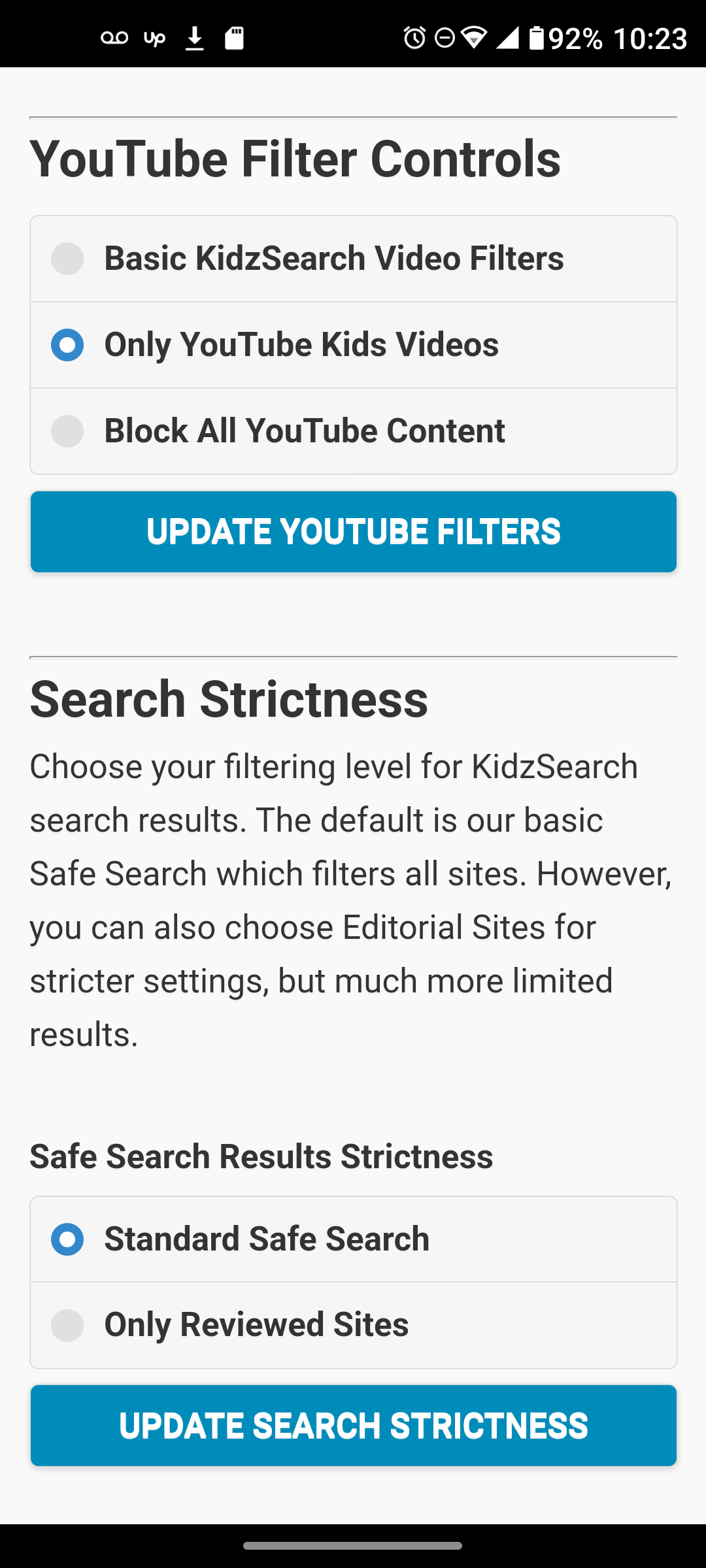
- Open app Settings, then Blocking and Filter Controls.
- Find YouTube Filter Controls.
- Choose Block All YouTube Content to block it, or Only YouTube Kids Videos for the narrower option.
- Select UPDATE YOUTUBE FILTERS and test a video route.
Why it matters: As a result, this can reduce exposure through the app. However, it does not control the separate YouTube app or a different browser. Even a child focused collection needs supervision and can miss unsuitable videos.
KidzSearch parental controls for app strictness
The app has its own strictness choice. KidzSearch documented video and strictness controls
- Open app Settings and Blocking and Filter Controls.
- Find Search Strictness and Safe Search Results Strictness.
- Select Only Reviewed Sites, then UPDATE SEARCH STRICTNESS.
Why it matters: Similarly, the narrower collection can support younger children. However, the website’s preference should not be assumed to configure the app automatically. Review both search routes after setup.
KidzSearch parental controls for community sections
The app can hide selected menu items and widgets. KidzSearch documented app layout controls
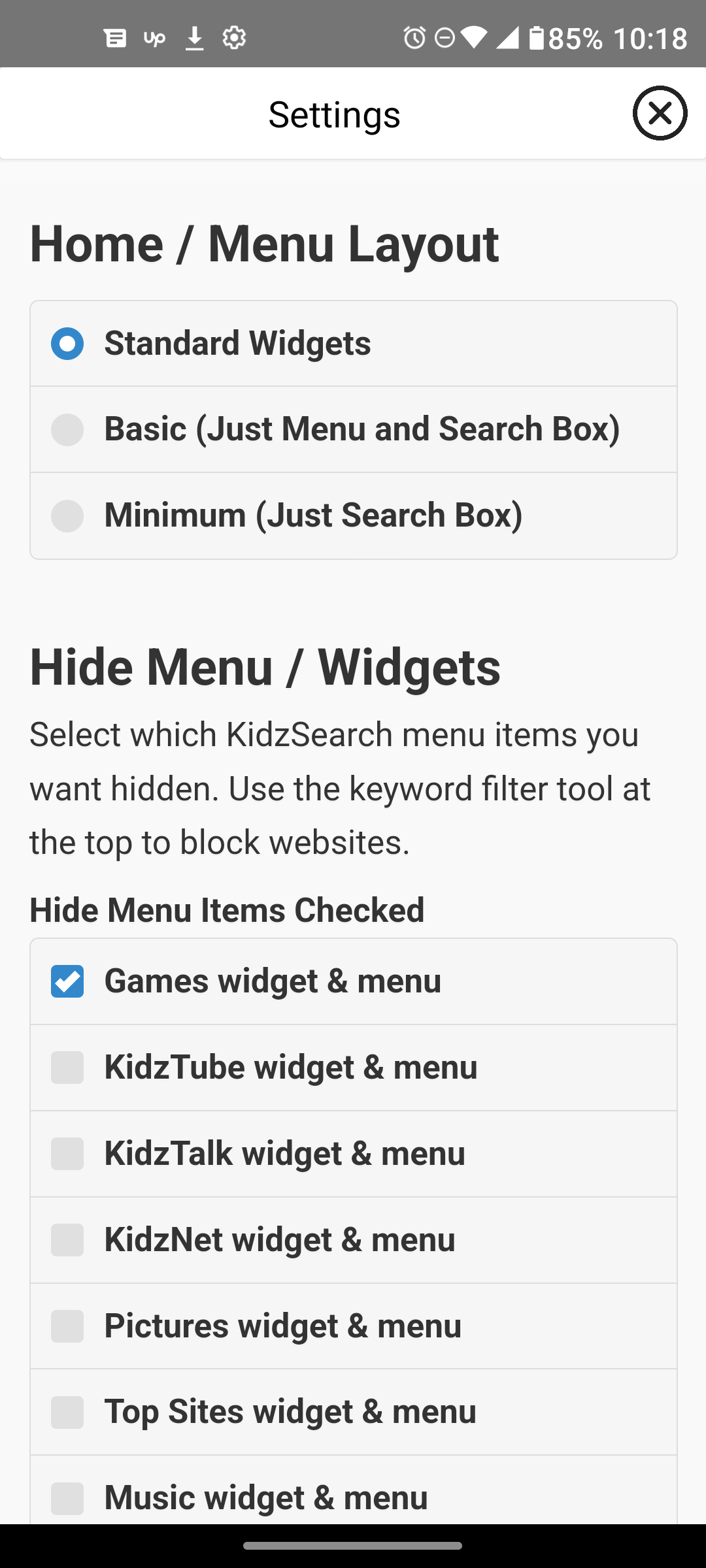
- Open app Settings and find Hide Menu / Widgets.
- Under Hide Menu Items Checked, check KidzTalk widget & menu and KidzNet widget & menu where participation is not agreed.
- Similarly, review Games widget & menu and other entries.
- Check the resulting home screen and use domain restrictions too if direct access must be prevented.
Why it matters: Hiding a menu reduces prompts to open that section. However, the documented screen explicitly distinguishes hiding from website blocking. It is not a guarantee that a direct link cannot reach the service.
Simplify the app Home / Menu Layout
App layout choices are distinct from the website preference. KidzSearch documented app layout controls
- Open app Settings and Home / Menu Layout.
- Choose Minimum (Just Search Box) or Basic (Just Menu and Search Box).
- Return to the home screen and verify the chosen layout.
Why it matters: As a result, this reduces distractions. However, it does not enforce a time limit, prevent app downloads or replace restrictions on community access.
Review KidzSearch parental controls through app history
The app provides a history view for adult review. KidzSearch documented app history screen
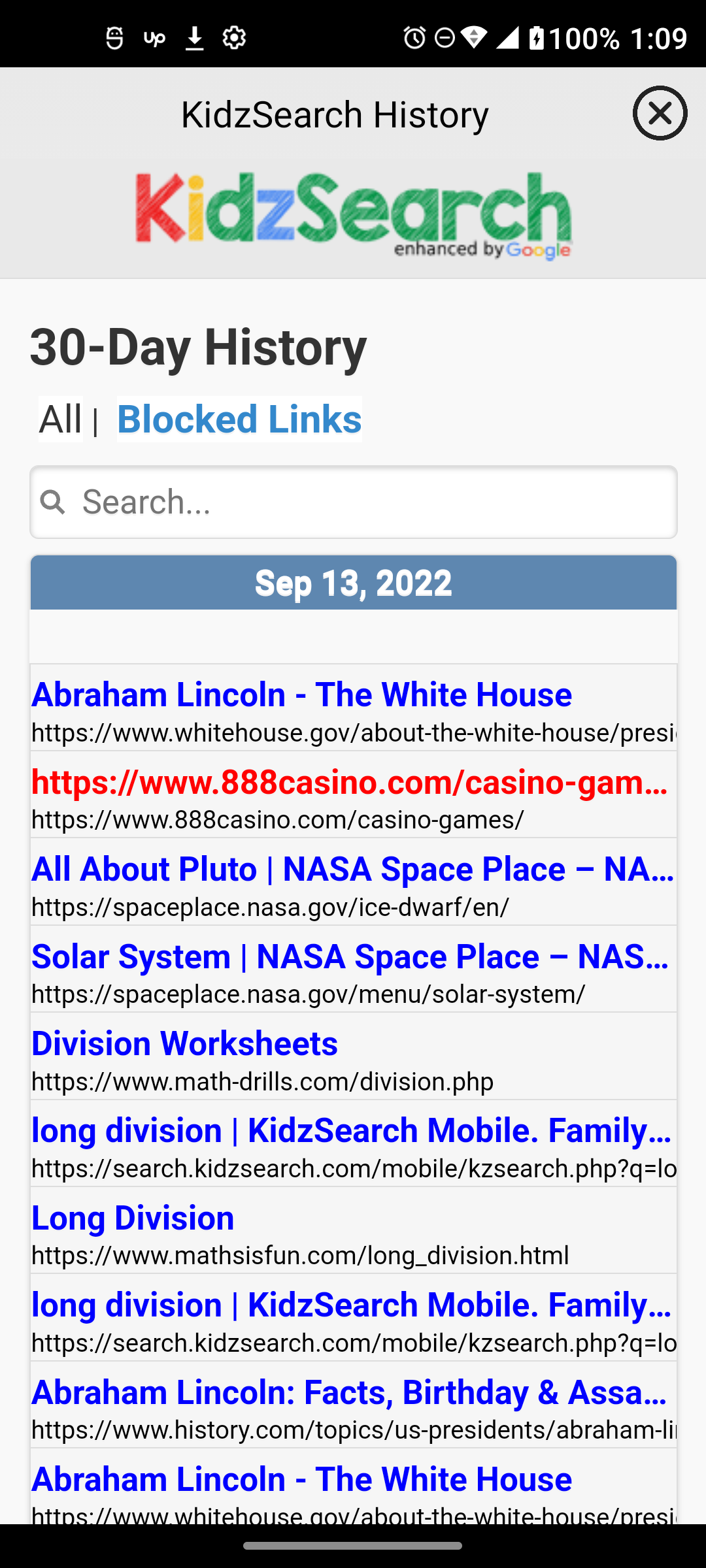
- Open the app’s KidzSearch History view.
- Review All or select Blocked Links.
- Use the Search field to find a relevant topic.
- Discuss any concern calmly and explain what monitoring is being used.
Why it matters: In addition, the current developer listing says this app history cannot be edited or deleted by the user. However, it only concerns activity captured by this app, not every search elsewhere. A blocked entry may reflect an accidental visit rather than deliberate behaviour.
Check that KidzSearch parental controls cannot be changed
Parent controlled settings only help if the child cannot freely remove them. KidzSearch app feature guide
- Complete the app’s required parent managed account setup before relying on custom restrictions.
- Keep the parent account password private and protect its email.
- Close the settings view, then test whether the child’s normal session can alter a restriction.
- If it can, ask support@kidzsearch.com for the current locking procedure.
Why it matters: The vendor describes locking additional restrictions, but a current PIN or password menu path was not verified. Therefore, do not assume a lock exists merely because a restriction was saved. App removal and other browsers need separate device controls.
Keep voice search optional
Voice searching uses the microphone rather than keyboard typing. KidzSearch voice search help
- Use the text search box if voice is unnecessary.
- If using voice, select the microphone beside the search box and review the browser permission request.
- Choose Never allow if microphone access is not wanted.
- Avoid speaking names, addresses or private circumstances as part of a query.
Why it matters: In addition, this helps control unnecessary microphone use. However, mobile keyboard dictation has separate device permissions. The current voice help lists Chrome and Edge, while older About text mentions Chrome only.
KidzSearch privacy and browser permissions
Website permissions are browser controls rather than KidzSearch account settings. Chrome site permission instructions
- In desktop Chrome, open KidzSearch and select View site information beside the address.
- Choose Site settings.
- Review Microphone, Camera, Location and Notifications, blocking access that is unnecessary.
Why it matters: As a result, this reduces access granted to that website. However, it does not revoke permissions for other sites, apps or keyboard dictation. Review those separately on the device.
KidzSearch privacy and browser cookies
The service describes functional cookies and storage, contextual advertisements and aggregated search information. KidzSearch terms and privacy policy Chrome cookie controls
- In desktop Chrome, open More, Settings, Privacy and security and Third-party cookies.
- Choose Block third-party cookies and review exceptions.
- Check site preferences again after changing browser privacy choices.
Why it matters: Privacy choices and content filtering address different risks. However, contextual advertising still involves processing, and partner websites have separate policies. Do not describe the service as collecting no information.
KidzSearch privacy and local records
Local browser records and KidzSearch account data are separate. Chrome Android browsing data help
- On Android Chrome, open More and Delete browsing data.
- Choose a period, then More options to select history or cookies as intended.
- Select Delete data and recheck Only Reviewed Sites on the website.
Why it matters: In practice, this manages browser records. However, it does not erase the app’s monitored history or an account’s records. Never tell a child that clearing cookies removes every record of their activity.
Report a harmful result or community concern
The service accepts reports of missed filtering and other problems. About KidzSearch filtering KidzSearch contact form
- Use the problem reporting link after search results where shown, or open contact us.
- In Message, describe the concern and include the result URL or community post link.
- Provide an email only if a reply is wanted, then submit through the form.
- Help the child close the content while the report is reviewed.
Why it matters: A report can help investigate a missed result. However, it does not create an immediate personal block or emergency response. Use the appropriate safeguarding support for threats, sexual pressure or grooming.
KidzSearch privacy and account deletion
Optional services can have separate accounts and settings. KidzSearch account deletion form
- Open the official Account Deletion Request form.
- Enter Your Name, Parent/Guardian Email and Account Deletion Request Details.
- List each service, account email and username to be deleted, then submit the request.
- Respond to the official confirmation email after checking the deletion consequences.
Why it matters: Parents can request deletion for a child. The form states a maximum of 30 days from confirmation. However, safety, moderation or legal records can have retention exceptions, and deletion does not remove copies saved by other people.
KidzSearch Safety Settings and Why They Matter
Filtering, privacy and AI choices address different risks. For example, a private search can still return inaccurate information or a scam. Review the strongest available filter alongside the child’s browsing habits and explain how to ask for help.
How to Use KidzSearch Safely
For younger children, search together and choose a small set of trusted learning websites. For teenagers, agree when independent searching is appropriate and how to ask for help after an upsetting result. Encourage questions without blaming a child for content they encounter.
Check the publisher, date and evidence before trusting an answer. Sponsored links may lead to scams, and generated answers can cite material that does not support their claim. Avoid submitting school details, passwords, private photos or sensitive family information in a search or AI prompt.
Essential Safety Advice and Current Concerns
KidzSearch documents AI used for filtering and query understanding. Its older KidzBot API documentation also describes an AI question and answer system. However, that document dates to 2020 and does not establish a current public generative chat rollout, model or AI off switch. KidzBot API documentation
For KidzSearch safety settings, distinguish automated filtering from generated answers a child might encounter on destination sites. Moderation or filtered wording does not prove an answer is correct. Therefore, teenagers should compare original evidence, while younger children need help recognising advertising, unsupported claims and generated information.
Ofcom’s 2026 UK research highlights young people’s trust in AI generated information. Ofcom children and AI research These findings concern broader AI use rather than this engine’s error rate or Irish children specifically.
For parents, the practical concern is that a fluent answer may discourage a child from checking evidence. Younger children may need help recognising an answer as generated. Similarly, teenagers should verify claims before using them in homework. These are CODA’s practical implications, rather than measured outcomes for this service.
Responding to harmful content
If a search leads to grooming, sexual pressure, threats or bullying, help the child close the page and speak with a trusted adult. Keep relevant non explicit evidence when safe, report through the service and contact appropriate support. Never download or forward suspected child sexual abuse material.
In immediate danger in Ireland, call 112 or 999. For confidential support, use Childline Ireland. Report suspected illegal online content through Hotline.ie. CODA enquiries are for education and guidance rather than an emergency response.
Platform Support and Regional Differences
These instructions distinguish website controls from browser or mobile app controls. However, menus and feature availability may differ by country or device. Check the child’s actual screen before assuming that an option is available.
After clearing cookies or changing browsers, review the search settings again. Similarly, check links opened through school apps, voice assistants and browser address bars. A chosen homepage does not enforce use of one search engine.
App controls above use current feature descriptions and older official illustrated screens. However, the installed version may differ across Android, iOS and Amazon devices. Confirm each label and locking behaviour before relying on it. No instruction here assumes that deleting other browsers guarantees complete protection.
Safety Checklist
- Review KidzSearch safety settings separately on the website and in the app.
- Review cookies, location and search history separately.
- Check AI features and open original sources before trusting an answer.
- Avoid entering personal details into searches or AI prompts.
- Discuss sponsored results and the risks of destination websites.
- Agree supervision, breaks and a way to report upsetting content.
Frequently Asked Questions
Does filtering guarantee safe results?
No. Filters may miss harmful content, and websites can change after a result is indexed. Therefore, combine filtering with supervision and reporting.
Does clearing cookies remove browser history?
No. Cookies, browser history and any saved AI conversations are different records. In addition, deleting site data can reset safety preferences.
Is a private search engine automatically suitable for children?
No. Privacy reduces certain data collection, while suitability depends on content, features and the child’s needs. For younger children, search together.
Can AI answers replace checking sources?
No. AI can explain a topic but can also produce plausible mistakes. Instead, open the cited pages and compare reliable evidence.
Related CODA Guides
Continue with Resources for Parents and Video Guides. For further Irish support routes, visit Useful Links and Supports.
References
Sources 1 to 12
- KidzSearch terms and privacy policy: Optional accounts, consent, cookies and search data handling.
- KidzSearch Google Play listing: Current developer feature and data declarations, distinct from independent testing.
- KidzSearch app feature guide: Additional app filtering, restrictions and history.
- About KidzSearch filtering: Fixed filtering, keyword screening and result reporting.
- KidzSearch website settings: Search strictness, homepage layout and message controls.
- KidzSearch documented app blocking screen: Official illustrated labels. Confirm against the current installed version.
- KidzSearch documented video and strictness controls: Official illustrated video options and save buttons. Device verification remains necessary.
- KidzSearch documented app layout controls: Homepage choices and hidden menu or widget entries.
- KidzSearch documented app history screen: History search and a separate blocked links view.
- KidzSearch voice search help: Microphone use and supported browser differences.
- Chrome site permission instructions: Reviewing microphone, location and notifications for a website.
- Chrome cookie controls: Browser tracking preferences, distinct from KidzSearch filtering.
Sources 13 to 19
- Chrome Android browsing data help: Clearing browser records, separate from the app’s monitored history.
- KidzSearch contact form: Reporting filtering, privacy and service concerns.
- KidzSearch account deletion form: Parent requests, confirmation and the services to identify.
- KidzBot API documentation: Older technical evidence of natural language answering, not proof of a current child chat feature.
- Ofcom children and AI research: UK research on children’s media use and AI literacy. This is broader evidence, not a safety test of this engine.
- Childline Ireland support: Childline Ireland support instructions and supporting information.
- Hotline.ie reporting: Hotline.ie reporting instructions and supporting information.
About Children of the Digital Age
Children of the Digital Age provides online safety education and training for schools, parents and organisations. Our guidance combines practical digital safety with discussion of online behaviour and the decisions people make. For families, settings support ongoing conversations and do not replace safeguarding or professional support.
Send a message
Contact Children of the Digital Age to enquire about online safety education, parent sessions or training for your school or organisation.
Last updated: 11 October 2026
You must be logged in to post a comment.